Best Agent Skills for WorkBuddy in 2026
Discover the 10 best WorkBuddy agent skills for 2026. Based on hands-on testing, this guide covers from daily tasks to creative launches. Help you get the most out of WorkBuddy.
Quick context: What is WorkBuddy?
WorkBuddy is an AI agent built by Tencent. The ecosystem runs on three layers:
- Skills: modular capabilities you install from a marketplace. Browser automation, document generation, data analysis, security scanning. Over 10,000 community-contributed skills are available, plus official ones maintained by the platform team. You install what you need and ignore the rest.
- Connectors (MCP): integration bridges to external services. Tencent Docs, Notion, GitHub, Feishu, CRM systems, cloud platforms. Anything with an MCP server can plug in. Your AI agent doesn't just sit in a sandbox. It connects to your actual tools and data.
- Experts: domain-specific AI agents for specialized tasks. Market research, UI design, code review, legal analysis. You pick an expert for the job at hand instead of trying to make a general-purpose model do everything.
Skills are the layer most people underuse. The marketplace has thousands of them, but many grab whatever looks interesting, use it once, and forget about it. However, picking the right skills could save you hours a week.
I went through the marketplace, installed and tested lots of skills that seemed promising, and selected the 10 best ones. Pick the ones that match your job.
Comparison Table
| skill | category | best for | install name |
|---|---|---|---|
| Agent Browser | automation | scraping data, filling forms, taking screenshots | agent-browser |
| MarkItDown | document work | converting PDF, Word, PPT, images, audio into clean Markdown | markitdown |
| Excel Master | document work | generating datasets, pivot tables, charts | minimax-xlsx |
| PPT Generator | document work | building slide decks with consistent design, charts, and icon layouts | pptx-generator |
| Humanizer | writing quality | removing AI patterns from text | humanizer |
| Prompt Engineering | output quality | turning vague prompts into structured ones | prompt-engineering-expert |
| Market Researcher | research | TAM estimates, competitive landscapes, trend analysis with cited sources | market-researcher |
| Zoom-Out | research | understanding unfamiliar codebases | zoom-out |
| HTML Deploy | deploy | going from idea to live URL in seconds | html-deploy |
| Skill Scanner | security | auditing community skills for security risks before installing | skill-scanner |
Best 10 Agent Skills for WorkBuddy
Agent Browser
Install name: agent-browserAgent Browser gives WorkBuddy a real browser to drive. It's not simply fetching a URL and parsing HTML. It's an actual Chromium instance that renders JavaScript, clicks buttons, fills forms, scrolls, takes screenshots, and extracts structured data. You describe what you want in plain English, and it handles the rest.
Best for:
- Marketers tracking competitor pages or monitoring price changes
- Researchers scraping structured data from sources without APIs
- QA engineers doing quick visual regression checks
What's good:
Most browser automation tools are either code-heavy frameworks that need setup and selector maintenance, or no-code recorders that break when a website changes its layout. Agent Browser sits in between. You give it natural language, it figures out the selectors, waits, and error handling.
It also takes full-page screenshots as a native feature, which is rarer than you'd think. And unlike browser-use (the Python library), it runs inside WorkBuddy with zero setup. No dev environment, no pip install.
What I tested:
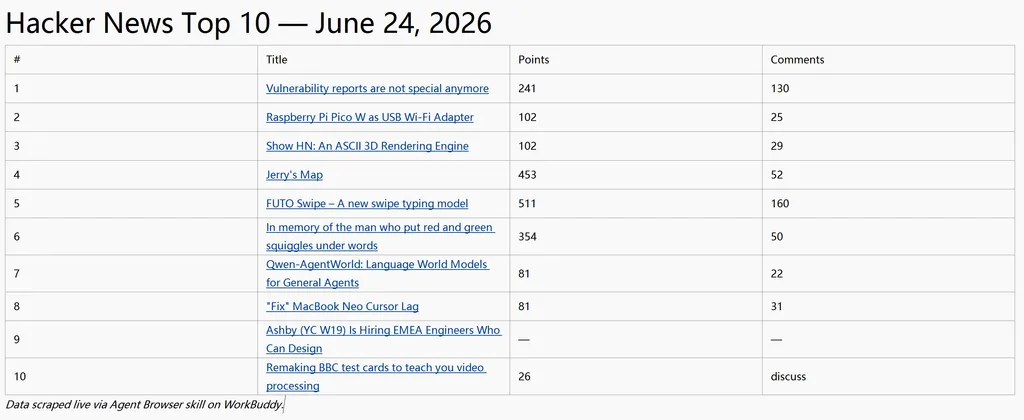
I asked it to go to Hacker News, screenshot the top 10 stories, and save the titles, points, and comment counts into a markdown table. It took a full-page screenshot, parsed the story data, and output a clean 10-row markdown table with clickable links.
MarkItDown
Install name: markitdownMarkItDown converts any document format into clean Markdown, including PDF, Word, PowerPoint, image (with OCR), audio (with transcription) and web page URL. Feed it any of those, get back structured Markdown with headings, tables, lists, and links preserved.
Best for:
- Writers pulling quotes from PDFs
- Developers converting specs into README files
- Students turning lecture slides into study notes
- Anyone who's ever copy-pasted from a PDF and gotten garbage
What's good:
MarkItDown's edge is format coverage and structural fidelity. It doesn't just extract text. It preserves the document's hierarchy. Headings stay as headings, tables stay as tables, bullet lists stay as lists. Most converters flatten everything into plain paragraphs.
It's also a pipeline tool. The Markdown it produces can become input for other skills.
Excel Master
Install name: minimax-xlsxExcel Master creates, reads, edits, and validates .xlsx files through conversation. It can generate datasets from scratch, add pivot tables, insert charts, apply formulas, format cells, merge sheets all without opening Excel.
Best for:
- Analysts who spend more time formatting than analyzing
- Operations who need a quick model or report
- Developers who need Excel output without learning openpyxl
What's good:
First, it generates the actual file. You don't have to run codes to get a .xlsx you can open immediately, formatted, with charts rendered and formulas live.
Second, it understands Excel semantics. Pivot tables aren't just "group by" SQL. They're real Excel pivot objects that users can modify afterward. Charts aren't static images. They're native Excel charts that update when data changes.
The alternative is writing openpyxl or pandas scripts yourself. That works, but it needs Python knowledge, debugging, and you still handle formatting manually. Excel Master collapses all of that into one prompt.
What I tested:
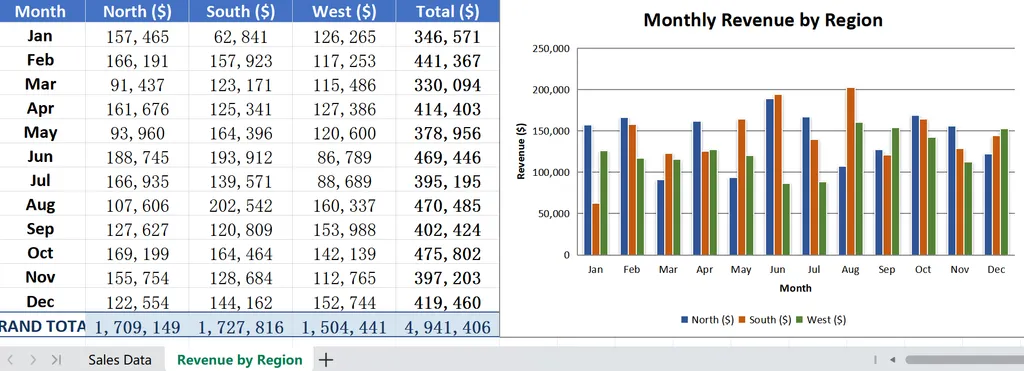
I asked for a sample sales dataset: 5 products, 3 regions, 12 months of random data, plus a pivot table summarizing revenue by region and a bar chart. What I got was a 2-sheet workbook. The pivot used live formulas. I could change a number in Sheet 1 and the totals would recalculate.
PPT Generator
Install name: pptx-generatorPPT Generator can quickly create .pptx files from a text description. You specify the topic, number of slides, style, and content. It produces a designed presentation with consistent typography, color palettes, charts, icon layouts, and section dividers.
Best for:
- Business & Sales: Create product decks, proposals, and pitch presentations.
- Management & Training: Turn strategy, data, and training content into structured visuals.
- Education & Content: Transform complex ideas into clear, shareable visuals for teaching/academic exchange.
What's good:
Within WorkBuddy's ecosystem, it pairs naturally with other skills. Market Researcher produces data, PPT Generator turns it into a deck. That pipeline is hard to replicate with standalone tools.
The design system is more structured than "make it look nice." It uses named palettes (e.g., Pure Tech Blue, Warm Corporate) and named styles (e.g., Bold & Dramatic, Soft & Balanced) with layout rules for grid alignment, margins, and font hierarchies. The output looks intentional, not generated.
What I tested:
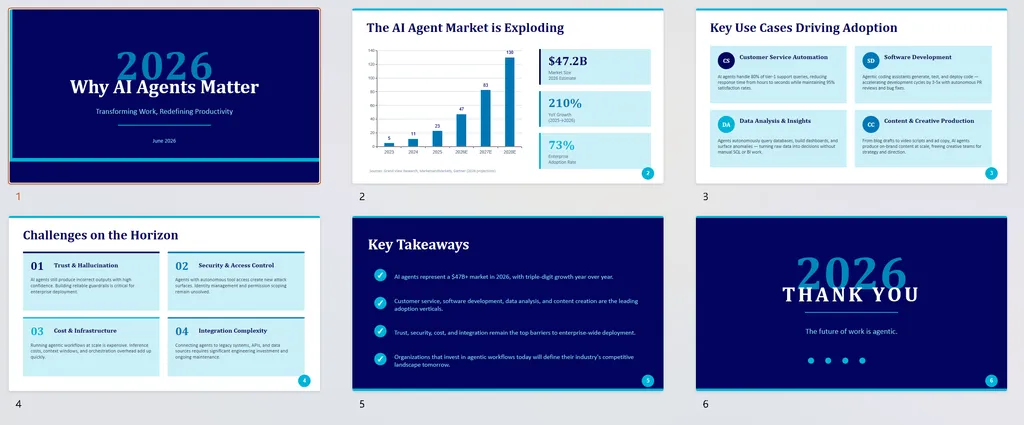
I asked for a 6-slide presentation about "Why AI Agents Matter in 2026". Here's the result:
Humanizer
Install name: humanizerHumanizer detects and removes the patterns that make text sound AI-generated. It targets specific tells: inflated vocabulary (e.g., "leverage," "delve," "testament"), emoji decoration, copula avoidance (e.g., "what sets it apart is..."), generic upbeat conclusions, uniform sentence rhythm, and the total absence of first-person voice.
Best for:
- Content writers publishing AI-assisted drafts
- Marketers who need copy that doesn't read like a robot wrote it
- Students submitting essays (use ethically)
What's good:
It identifies about 15 specific named patterns, explains why each one is a tell, and removes or replaces it with a targeted fix. Humanizer doesn't only remove bad patterns, but also adds voice. The output sounds like a person who did the work, not a Wikipedia article.
Besides, it preserves 100% of meaning. Facts, structure, and logic stay intact.
What I tested:
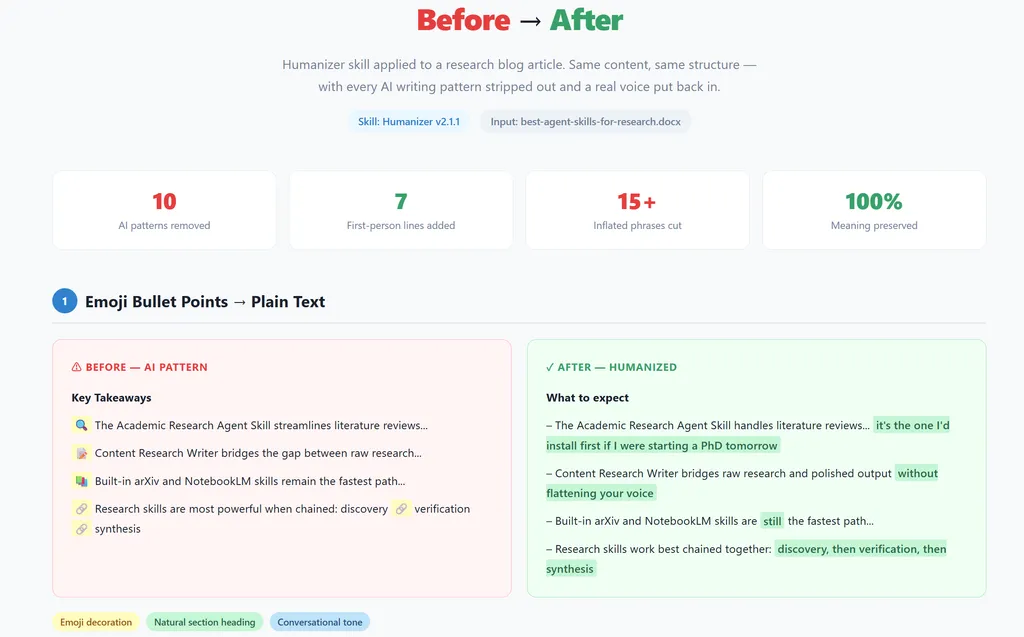
I fed it a research article draft riddled with AI cliches. The output removed 10 AI patterns, injected 7 first-person references, cut 15+ inflated phrases, and varied sentence rhythm.
Prompt Engineering
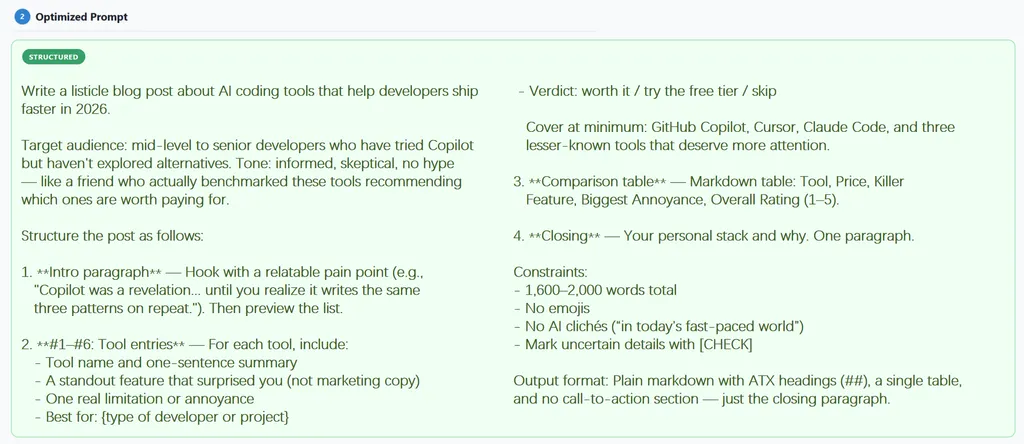
Install name: prompt-engineering-expertThis skill takes a vague prompt and restructures it into a clear, constraint-rich prompt with named sections: audience, tone, structure, constraints, output format. It also explains why the improved version works, naming the principles behind each change.
Best for:
- AI beginners who don't know what a "good" prompt looks like or who find their AI output fine but not great
- Power users who know they should structure prompts but can't be bothered
- Teams standardizing prompt quality across members
What's good:
It improves your ability to produce content by diagnosing your specific prompt's weaknesses and rebuilding it.
It also adds anti-hallucination mechanisms. [CHECK] markers that force the model to flag uncertain claims. That's a technique which reduces fabricated facts in output.
What I tested:
I gave it the laziest prompt imaginable: "Help me write a blog post about AI tools." Then the improved version specified audience (mid-senior developers who use Copilot), tone (skeptical, no hype), structure (4 numbered sections), constraints (1,600-2,000 words, no emoji, no cliche, [CHECK] markers), and output format.
Market Researcher
Install name: market-researcherMarket Researcher produces structured research reports including segments like TAM estimates, competitive landscapes, trend analysis and ROI benchmarks. It combines live web search with analytical framing, cites sources, shows its reasoning, and outputs a formatted one-page report.
Best for:
- Product managers sizing a market before building
- Founders preparing investor decks
- Consultants producing client deliverables
- Analysts who need a first-draft research brief as soon as possible
What's good:
Market Researcher's advantage is traceability. Every number comes with a source link. It pulls from research firms not just blog posts. When it estimates market share, it says it's an estimate and shows the reasoning. When data conflicts, it notes the range.
It also structures the output as a complete report which is formatted and ready to screenshot into a deck or doc.
What I tested:
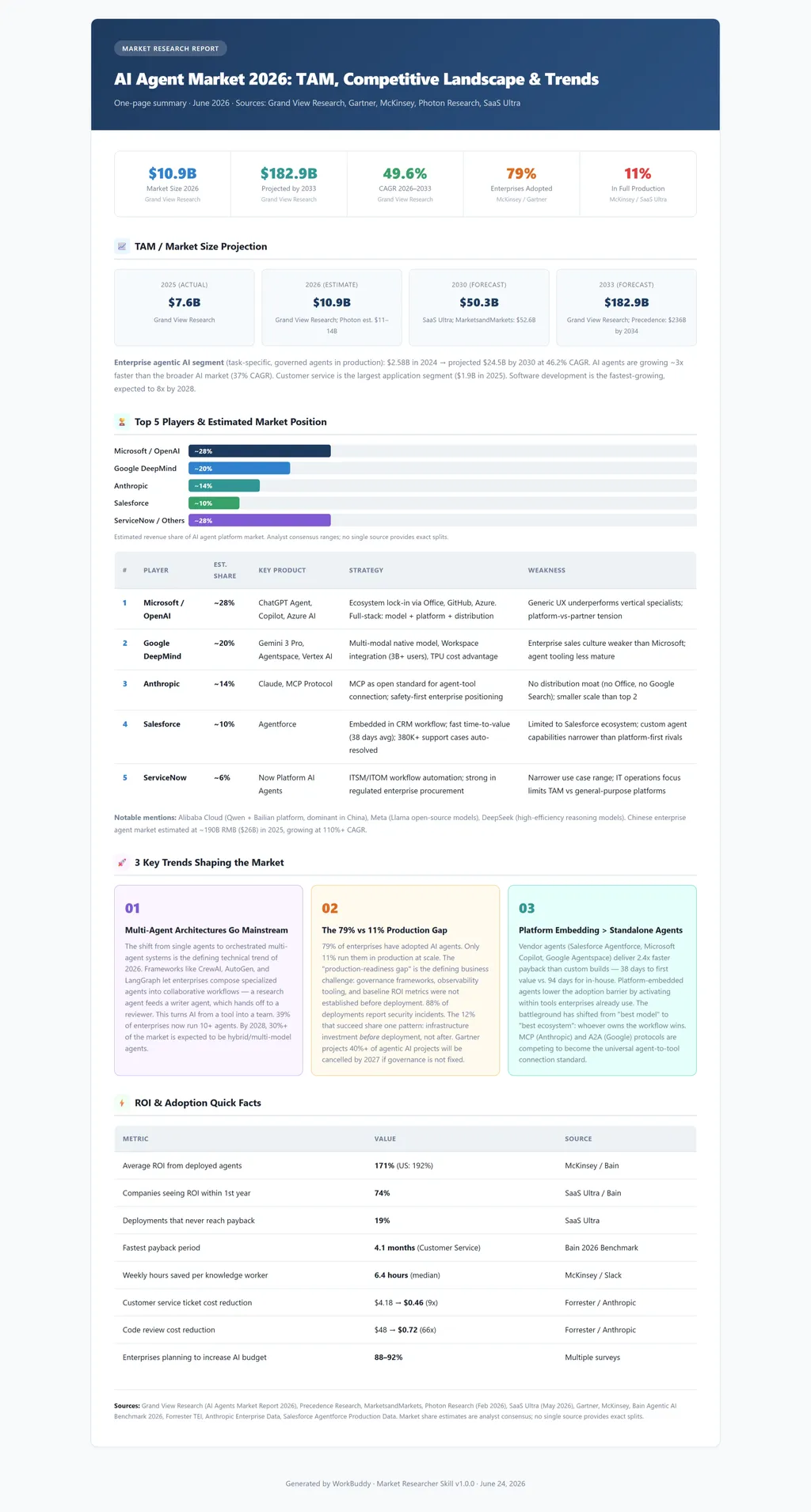
I asked it to research the AI agent market in 2026: estimate the TAM, list the top 5 players with market share, identify 3 trends, generate a one-page report. Here's the result:
Zoom-Out
Install name: zoom-outZoom-Out gives you a high-level architecture map of any codebase, local folder or remote site. It identifies main modules, their responsibilities, how they depend on each other, and the overall data flow.
Best for:
- Developers joining a new team or project
- Open-source evaluators deciding whether to adopt a library
- Tech leads doing architecture reviews
What's good:
Zoom-Out answers "what is this thing?" before you dive into "how does this function work?" It produces a layered map (Presentation, API, Data, Infrastructure), not a file listing. The output is a diagram, not a tree.
One caveat: for remote websites where source code isn't available, it infers architecture from the public surface (page structure, API docs, FAQ content). It's surprisingly accurate but explicitly labeled as inferred, not definitive. For local codebases, it reads the actual files.
HTML Deploy
Install name: html-deployHTML Deploy is a fast way to take a self-contained HTML page from your screen to a live, shareable URL. There is no need for hosting setup, no DNS, no build step. You write the HTML, the skill handles everything else, and you get a public link back in seconds.
Best for:
- Indie developers prototyping landing pages
- Marketers spinning up campaign pages
- Writers publishing interactive content (data visualizations, calculators)
What's good:
- Single HTML files up to roughly 1MB, including landing pages, interactive charts, mini document viewers, style demos, countdown pages, invitation pages, one-off reports and so on.
- Recurring content with stable custom short links and built-in version history: push new versions over time, roll back to any previous one, and each version gets its own URL.
- Quick sharing via QR code generation. All CSS and JS stays inline, so there's zero dependency management.
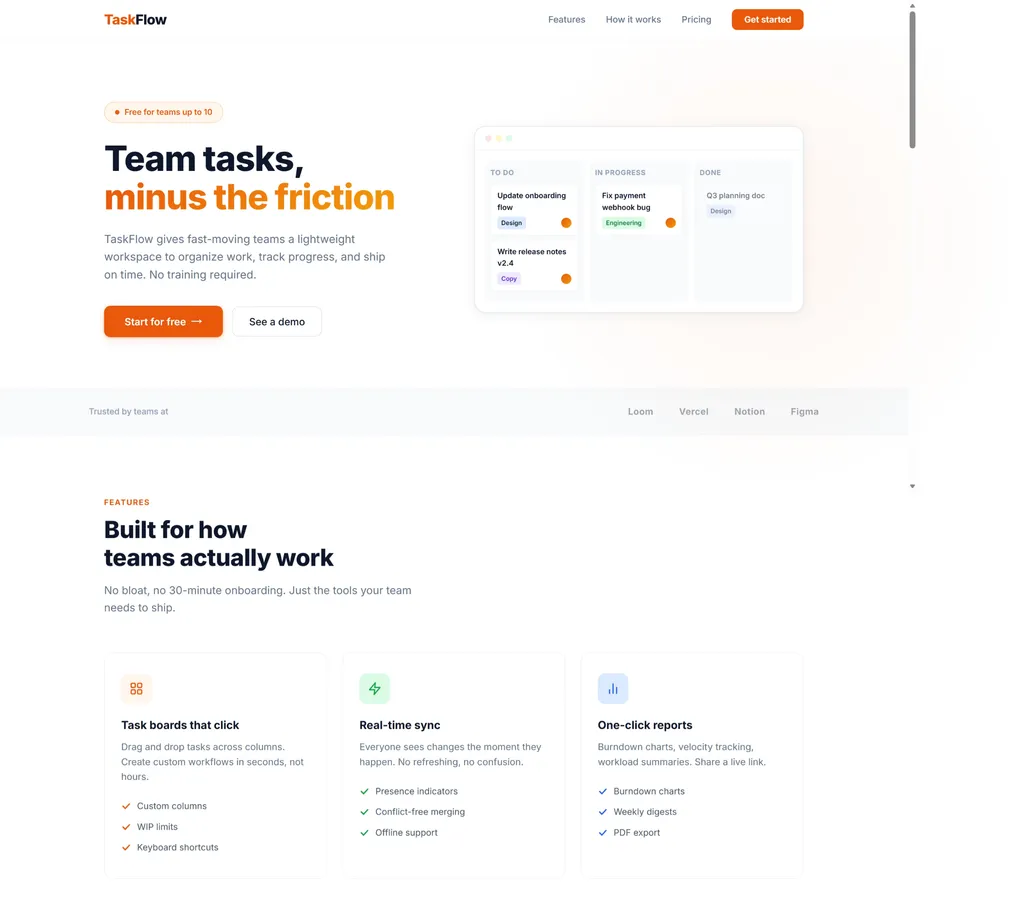
Here's a simple landing page demo for a fictional task management app I asked WorkBuddy to generate using this skill:
Skill Scanner
Install name: skill-scannerSkill Scanner runs a local static security analysis on any skill before you install it. It scans the SKILL.md, scripts, references, and assets, then produces a risk report with severity levels (P0 critical, P1 warning, P2 safe), specific findings, and pass/fail per category.
Best for:
- Everyone who installs community skills. This should be your default.
- Security-conscious teams standardizing skill adoption
- Skill creators auditing their own work before publishing
What's good:
It's powered by Tencent Zhuque Lab's AI-Infra-Guard engine. It catches actual vulnerability patterns: command injection, path traversal, credential leakage, excessive permissions.
One thing that matters is that it runs locally. Your skill files never leave your machine. No cloud analysis, no telemetry. That matters when you're scanning skills that might themselves be collecting data.
How to install these skills
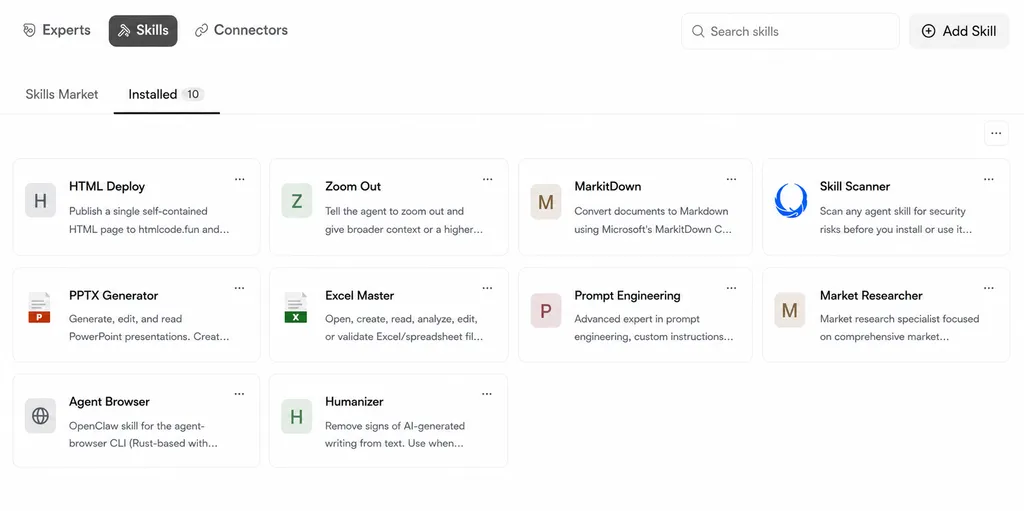
I’ve outlined five simple steps to help you quickly install these skills in workbuddy:
- Open WorkBuddy
- Click Skills in the left sidebar
- Search by the install name listed above
- Click Install
- Choose the skill and describe what you want in conversation.
FAQ
What are WorkBuddy skills?
Skills are installable modules that extend what WorkBuddy can do. The base model handles text — writing, summarizing, answering questions. Skills give it new capabilities. You install them from the Skill Marketplace inside WorkBuddy, and they activate automatically.
Are these skills free?
Yes. All 10 skills listed here are available in WorkBuddy's built-in Skill Marketplace at no cost. Some community-contributed skills may have different terms, but the ones in this list are free to install and use.
Can multiple skills work together?
Yes. You can chain skills in one conversation. For example: use Market Researcher to pull data on a market, then PPT Generator to turn that data into a slide deck, then Humanizer to polish the talking points. The output of one skill becomes the input for the next.
Is it safe to install skills from the marketplace?
Most skills in the official marketplace are vetted, but skills can contain scripts that execute on your machine. That's why Skill Scanner exists. Run it on any community skill before you trust it.