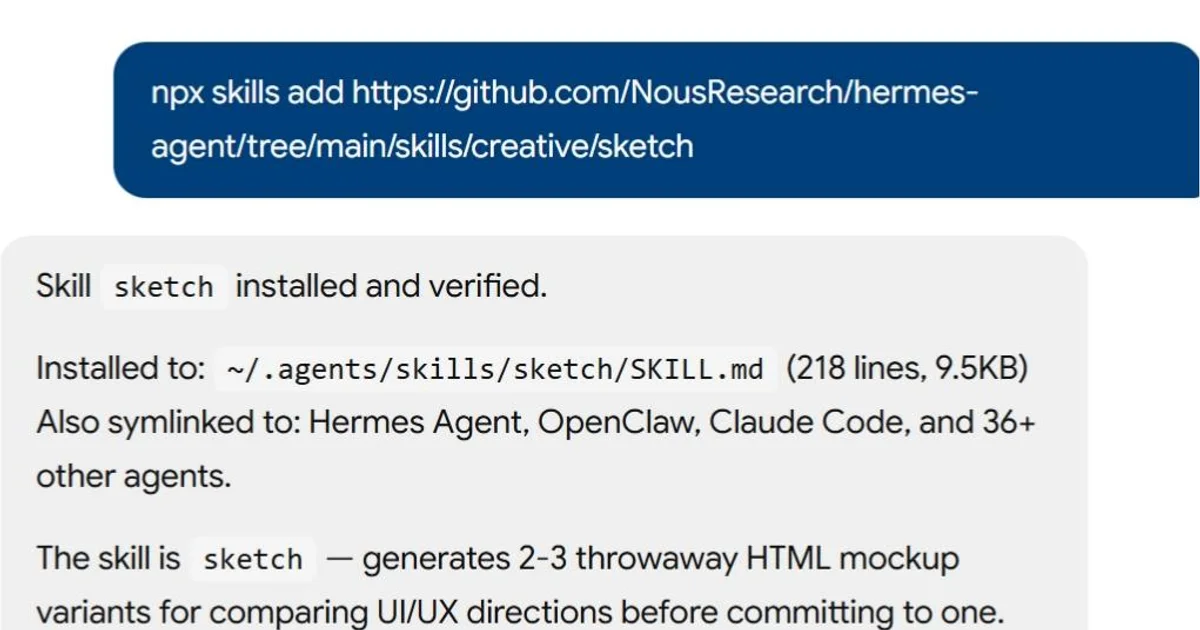

Sketch
Use this skill when the user wants to see a design direction before committing to one — exploring a UI/UX idea as disposable HTML mockups. The point is to generate 2-3 interactive variants so the user can compare visual directions side-by-side, not to produce shippable code.
Load this when the user says things like "sketch this screen", "show me what X could look like", "compare layout A vs B", "give me 2-3 takes on this UI", "let me see some variants", "mockup this before I build".
When NOT to use this
- User wants a production component — use
claude-designor build it properly - User wants a polished one-off HTML artifact (landing page, deck) —
claude-design - User wants a diagram —
excalidraw,architecture-diagram - The design is already locked — just build it
If the user has the full GSD system installed
If gsd-sketch shows up as a sibling skill (installed via npx get-shit-done-cc --hermes), prefer gsd-sketch for the full workflow: persistent .planning/sketches/ with MANIFEST, frontier mode analysis, consistency audits across past sketches, and integration with the rest of GSD. This skill is the lightweight standalone version — one-off sketching without the state machinery.
Core method
intake → variants → head-to-head → pick winner (or iterate)
1. Intake (skip if the user already gave you enough)
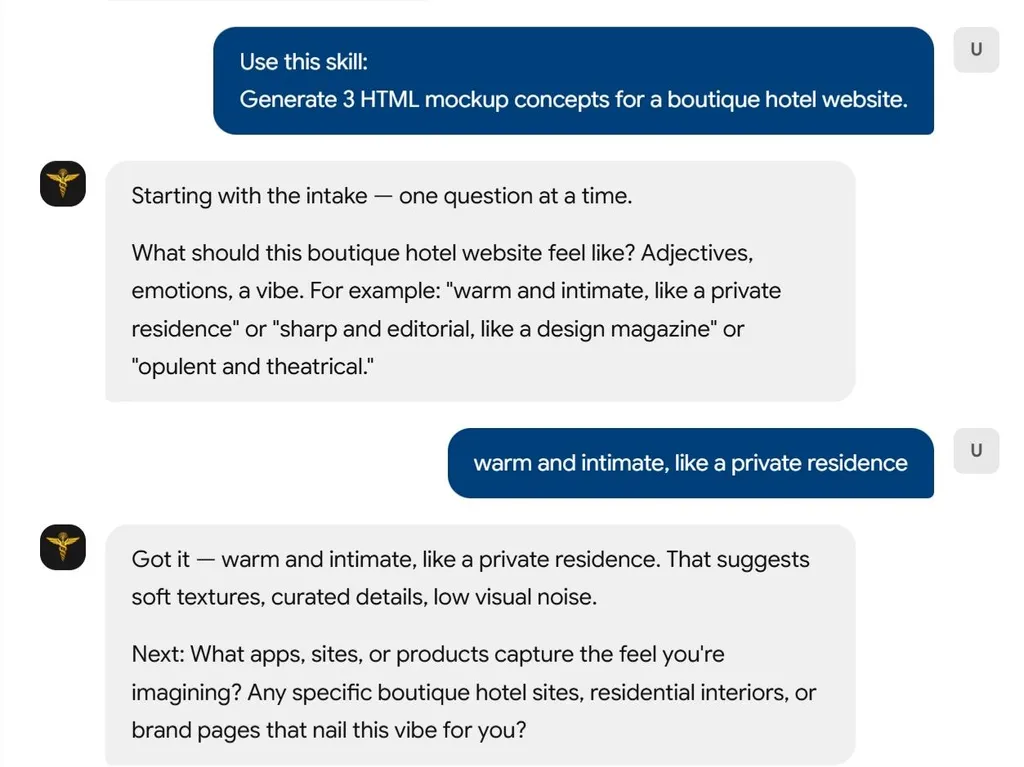
Before generating variants, get three things — one question at a time, not all at once:
- Feel. "What should this feel like? Adjectives, emotions, a vibe." — "calm, editorial, like Linear" tells you more than "minimal".
- References. "What apps, sites, or products capture the feel you're imagining?" — actual references beat abstract descriptions.
- Core action. "What's the single most important thing a user does on this screen?" — the variants should all serve this well; if they don't, they're just decoration.
Reflect each answer briefly before the next question. If the user already gave you all three upfront, skip straight to variants.
2. Variants (2-3, never 1, rarely 4+)
Produce 2-3 variants in one go. Each variant is a complete, standalone HTML file. Don't describe variants — build them. The point is comparison.
Each variant should take a different design stance, not different pixel values. Three good variant axes:
- Density: compact / airy / ultra-dense (pick two contrasting poles)
- Emphasis: content-first / action-first / tool-first
- Aesthetic: editorial / utilitarian / playful
- Layout: single-column / sidebar / split-pane
- Grounding: card-based / bare-content / document-style
Pick one axis and pull apart from it. Two variants that differ only in accent color are wasted effort — the user can't distinguish them.
Variant naming: describe the stance, not the number.
sketches/
├── 001-calm-editorial/
│   ├── index.html
│   └── README.md
├── 001-utilitarian-dense/
│   ├── index.html
│   └── README.md
└── 001-playful-split/
    ├── index.html
    └── README.md
3. Make them real HTML
Each variant is a single self-contained HTML file:
- Inline
<style>— no build step, no external CSS - System fonts or one Google Font via
<link> - Tailwind via CDN (
<script src="https://cdn.tailwindcss.com"></script>) is fine - Realistic fake content — actual sentences, actual names, not "Lorem ipsum"
- Interactive: links clickable, hovers real, at least one state transition (open/close, filter, toggle). A frozen static image is a worse spike than a sloppy animated one.
Open it in a browser. If it looks broken, fix it before showing the user.
Verify variants visually — use Hermes' browser tools. Don't just write HTML and hope it renders; load each variant and look at it:
browser_navigate(url="file:///absolute/path/to/sketches/001-calm-editorial/index.html")
browser_vision(question="Does this layout look clean and readable? Any visible bugs (overlapping text, unstyled elements, broken images)?")
browser_vision returns an AI description of what's actually on the page plus a screenshot path — catches layout bugs that pure source inspection misses (e.g. a font import that silently failed, a flex container that collapsed). Fix and re-navigate until each variant looks right.
Default CSS reset + system font stack for fast starts:
<style>
  * { box-sizing: border-box; margin: 0; padding: 0; }
  body {
    font-family: -apple-system, BlinkMacSystemFont, "Segoe UI", Roboto,
                 "Helvetica Neue", Arial, sans-serif;
    -webkit-font-smoothing: antialiased;
    color: #1a1a1a;
    background: #fafafa;
    line-height: 1.5;
  }
</style>
4. Variant README
Each variant's README.md answers:
## Variant: {stance name}

### Design stance
One sentence on the principle driving this variant.

### Key choices
- Layout: ...
- Typography: ...
- Color: ...
- Interaction: ...

### Trade-offs
- Strong at: ...
- Weak at: ...

### Best for
- The kind of user or use case this variant actually serves
5. Head-to-head
After all variants are built, present them as a comparison. Don't just list — opinionate:
## Three takes on the home screen

| Dimension | Calm editorial | Utilitarian dense | Playful split |
|-----------|----------------|-------------------|---------------|
| Density   | Low            | High              | Medium        |
| Primary action visibility | Low | High | Medium |
| Scan-ability | High | Medium | Low |
| Feel | Calm, trusted | Sharp, tool-like | Inviting, energetic |

**My take:** Utilitarian dense for power users, calm editorial for content-forward audiences. Playful split is weakest — tries to do both and commits to neither.
Let the user pick a winner, or combine two into a hybrid, or ask for another round.
Theming (when the project has a visual identity)
If the user has an existing theme (colors, fonts, tokens), put shared tokens in sketches/themes/tokens.css and @import them in each variant. Keep tokens minimal:
/* sketches/themes/tokens.css */
:root {
  --color-bg: #fafafa;
  --color-fg: #1a1a1a;
  --color-accent: #0066ff;
  --color-muted: #666;
  --radius: 8px;
  --font-display: "Inter", sans-serif;
  --font-body: -apple-system, BlinkMacSystemFont, sans-serif;
}
Don't over-tokenize a throwaway sketch — three colors and one font is usually enough.
Interactivity bar
A sketch is interactive enough when the user can:
- Click a primary action and something visible happens (state change, modal, toast, navigation feint)
- See one meaningful state transition (filter a list, toggle a mode, open/close a panel)
- Hover recognizable affordances (buttons, rows, tabs)
More than that is over-engineering a throwaway. Less than that is a screenshot.
Frontier mode (picking what to sketch next)
If sketches already exist and the user says "what should I sketch next?":
- Consistency gaps — two winning variants from different sketches made independent choices that haven't been composed together yet
- Unsketched screens — referenced but never explored
- State coverage — happy path sketched, but not empty / loading / error / 1000-items
- Responsive gaps — validated at one viewport; does it hold at mobile / ultrawide?
- Interaction patterns — static layouts exist; transitions, drag, scroll behavior don't
Propose 2-4 named candidates. Let the user pick.
Output
- Create
sketches/(or.planning/sketches/if the user is using GSD conventions) in the repo root - One subdir per variant:
NNN-stance-name/index.html+README.md - Tell the user how to open them:
open sketches/001-calm-editorial/index.htmlon macOS,xdg-openon Linux,starton Windows - Keep variants disposable — a sketch that you felt the need to preserve should be promoted into real project code, not curated as an asset
Typical tool sequence for one variant:
terminal("mkdir -p sketches/001-calm-editorial")
write_file("sketches/001-calm-editorial/index.html", "<!doctype html>...")
write_file("sketches/001-calm-editorial/README.md", "## Variant: Calm editorial\n...")
browser_navigate(url="file://$(pwd)/sketches/001-calm-editorial/index.html")
browser_vision(question="How does this look? Any obvious layout issues?")
Repeat for each variant, then present the comparison table.
Attribution
Adapted from the GSD (Get Shit Done) project's /gsd-sketch workflow — MIT © 2025 Lex Christopherson (gsd-build/get-shit-done). The full GSD system ships persistent sketch state, theme/variant pattern references, and consistency-audit workflows; install with npx get-shit-done-cc --hermes --global.